How to View MBOX Files on Mac Safely and Easily

How to View MBOX Files on Mac Safely and Easily

MBOX is a mailbox archive format that stores many email messages in one file or package. On a Mac, you usually do not need special conversion software just to view an MBOX archive. Apple Mail can import messages from standard MBOX files directly, and the imported mail appears in an “Import” mailbox where you can read, search, organize, or move it into other mailboxes. The best viewing method depends on what you need. Apple Mail is the simplest native choice when you want normal message reading. Thunderbird is useful when you want a separate cross-platform mail client. A text editor can inspect raw message data for troubleshooting, while conversion to PDF is better when the goal is a stable human-readable document archive rather than a working mailbox.

What is an MBOX file?

MBOX is a mailbox format in which many email messages are stored sequentially in one file. An MBOX archive may preserve: Sender and recipients; Subject; Date; Internet headers; Message body; MIME attachments. Different email applications can produce slightly different MBOX variants, so a file that imports perfectly in one client may need repair or normalization in another.

Method 1: view MBOX with Apple Mail. Apple’s current Mail guide supports direct MBOX import. The process is:

  1. Open Mail on the Mac.
  2. Choose File > Import Mailboxes.
  3. Select “Files in mbox format” when importing a standard MBOX archive.
  4. Select the folder containing the MBOX file.
  5. Choose Continue.

The imported messages appear in a mailbox named Import in the Mail sidebar. Move imported mail after review. Once the archive has been validated, you can: Keep it inside the Import mailbox; Create a new local mailbox; Move selected messages elsewhere. Do not immediately delete the original MBOX file after import. Why Apple Mail is usually the best first option. Advantages include: No additional software; Native macOS integration; Normal message search; Attachment viewing; Easy local mailbox organization. Apple Mail can also export MBOX. Apple’s current guide says Mail can export selected mailboxes as .mbox packages using: Mailbox > Export Mailbox

This makes MBOX a practical format for moving mail between Macs or creating portable archives. Method 2: use Mozilla Thunderbird. Thunderbird is a cross-platform desktop email client that can be useful when you do not want to import the archive into your main Apple Mail profile. Depending on the current Thunderbird version and workflow, MBOX archives can be imported through built-in or supported extension-based tools. ImportExportTools NG. Thunderbird users often use the ImportExportTools NG add-on for mailbox import/export tasks. Verify the add-on’s current compatibility with your Thunderbird version before installing it. When Thunderbird is useful. Consider it when: You need a separate archive viewer.; You work across macOS and Windows.; You do not want to mix the archive with Apple Mail.; You need additional import/export options..

Method 3: inspect raw MBOX in a text editor

MBOX is fundamentally text-based, so advanced users can inspect it with editors such as: BBEdit; Visual Studio Code; Terminal tools. This is useful for troubleshooting, not comfortable everyday reading. Why Finder preview is not enough. A large MBOX file can contain thousands of messages and MIME-encoded attachments. Finder or Quick Look may show raw text rather than reconstructing the mailbox accurately. Method 4: convert MBOX to PDF. PDF is useful when the goal is: Readable archival copies; Printing; Sharing selected messages; Document review. PDF is not a full replacement for MBOX because it may not preserve all message headers, folder context, and native attachments. When PDF conversion makes sense. Use it when:

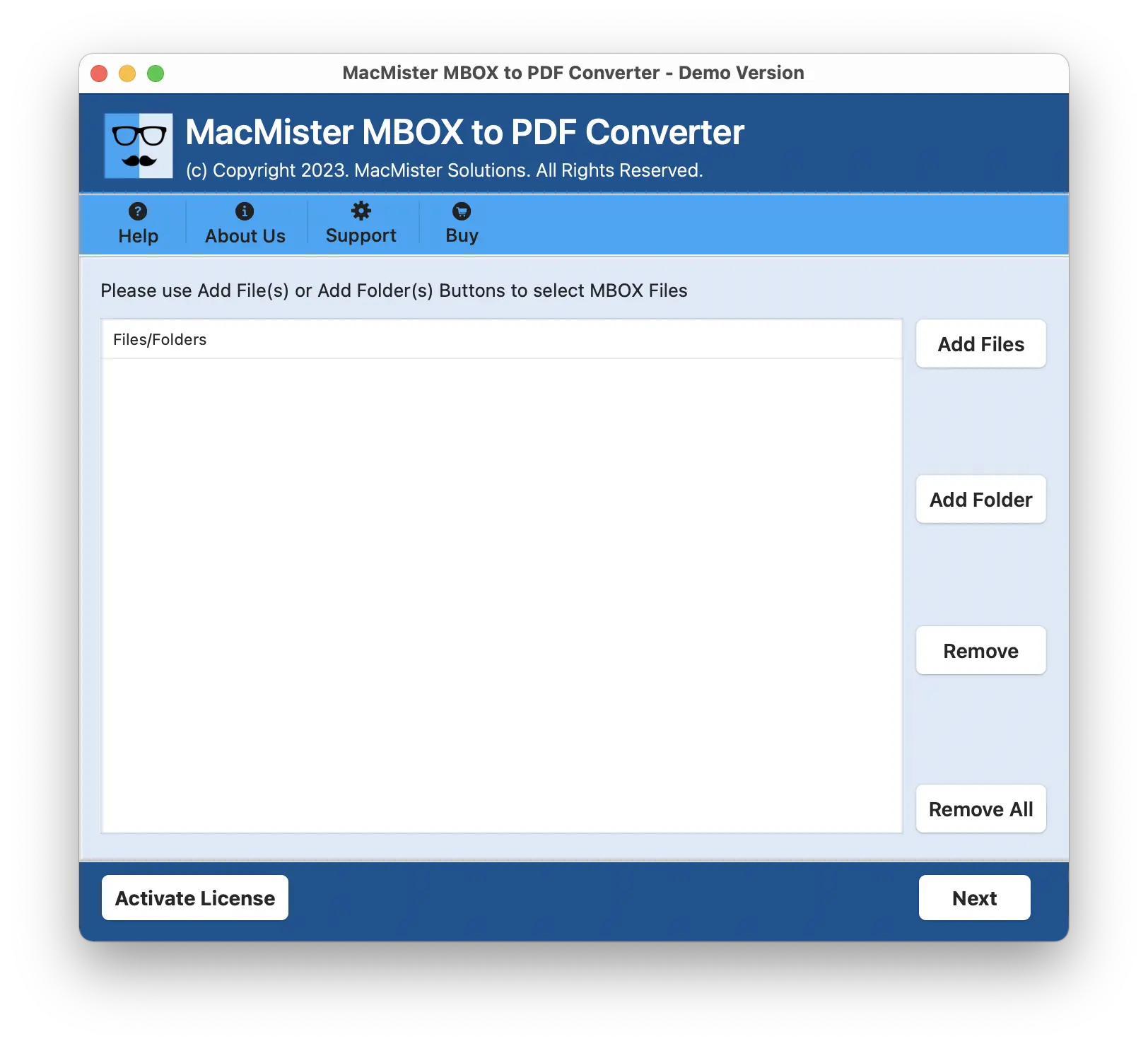
You no longer need mailbox functionality.; You need a document for review.; You want a stable visual copy.. Keep the original MBOX. For legal, business, or migration archives, preserve the source MBOX even after PDF conversion. Third-party MBOX-to-PDF software. The original article recommends MBOX to PDF Mac. If evaluating this or another converter in 2026, verify current macOS support, attachment handling, folder processing, output naming, trial limits, and whether processing occurs locally or in the cloud. Original product walkthrough screenshots. The original post included six screenshots showing the vendor’s MBOX conversion workflow. They are retained below because preserving useful existing visual material is important, but interface details can change over time.

Step 1: launch the converter

STEP 1

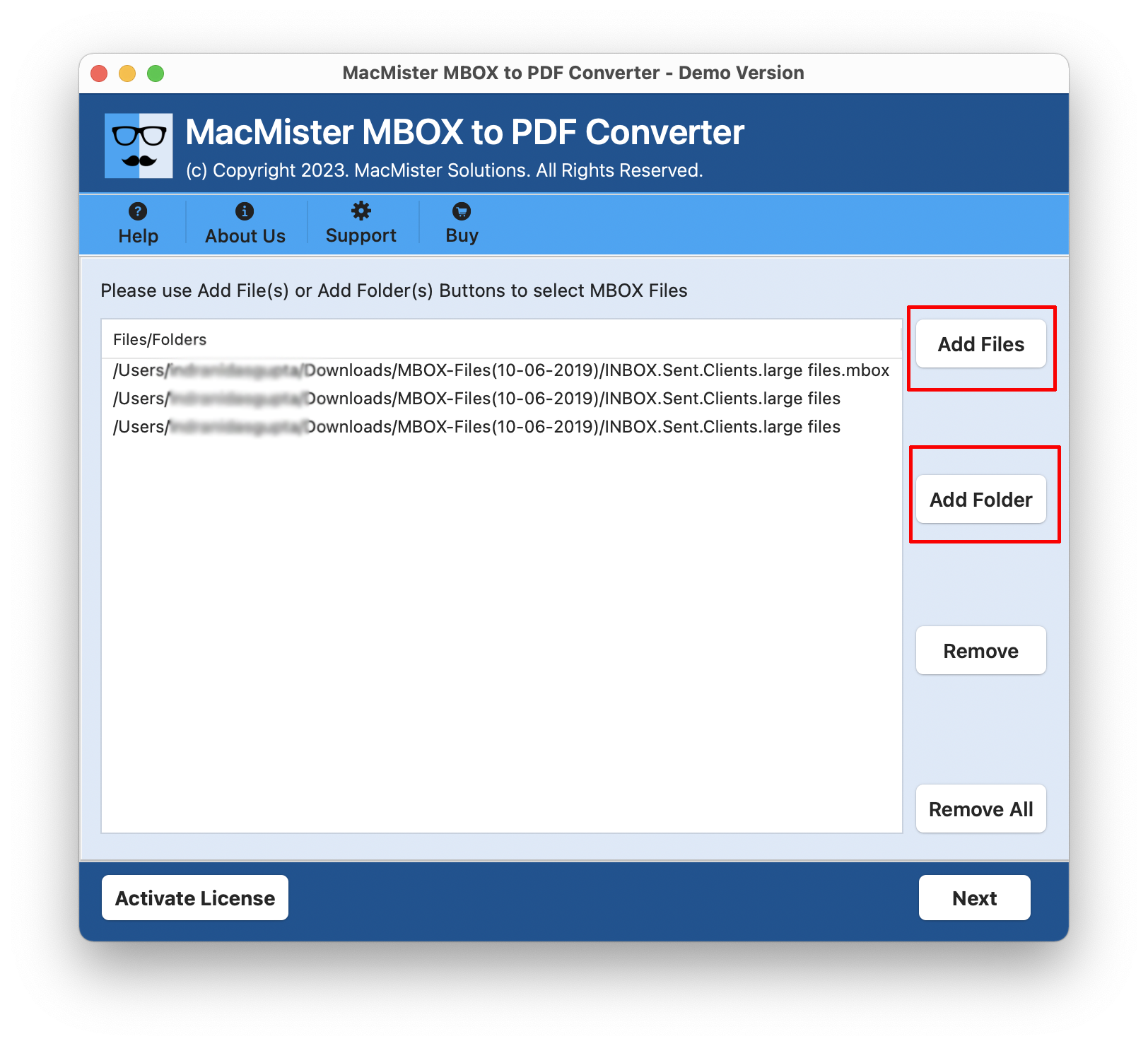
Step 2: add MBOX files

STEP 2

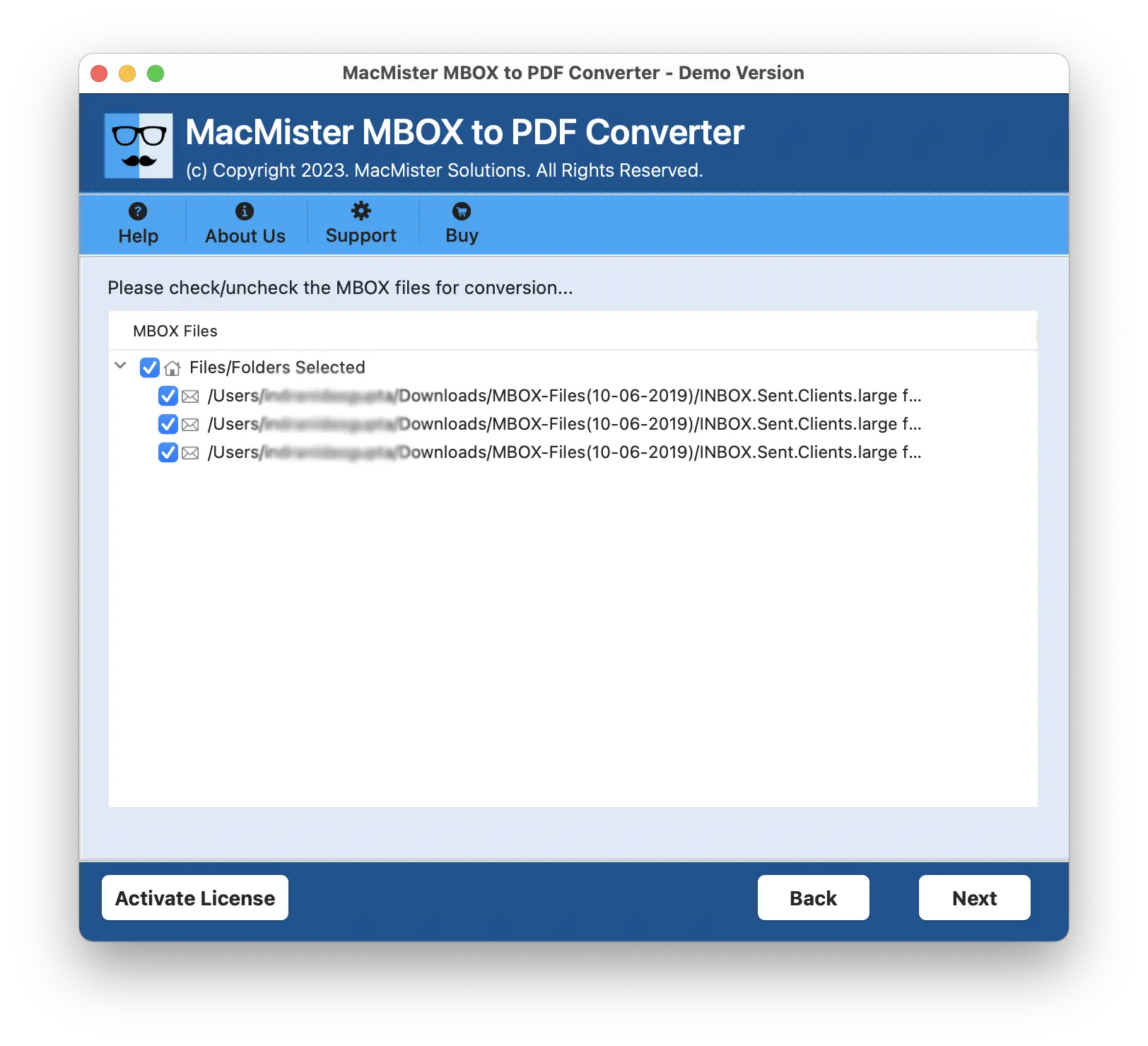
Step 3: select MBOX files

STEP 3

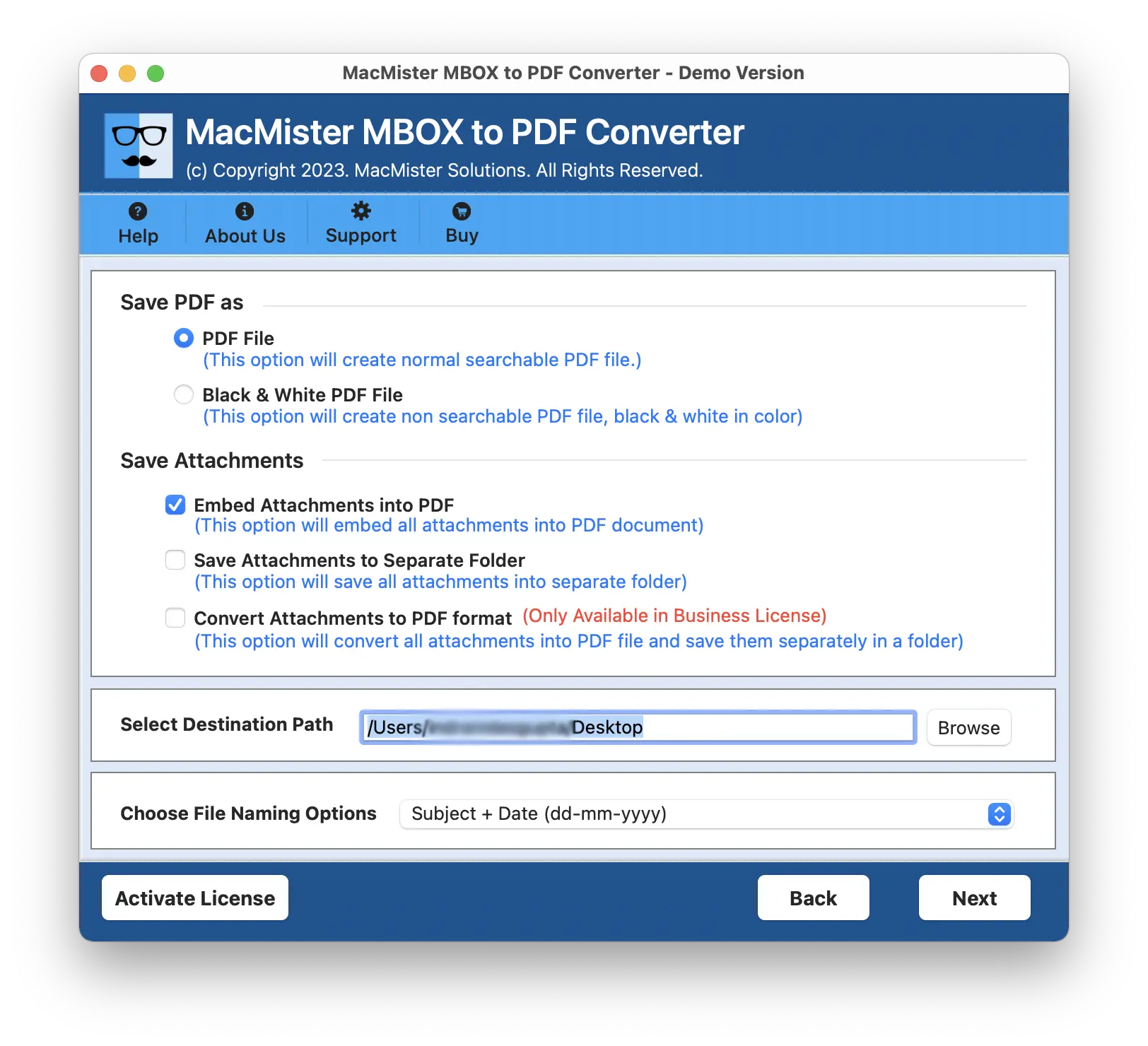
Step 4: choose PDF options

STEP 4

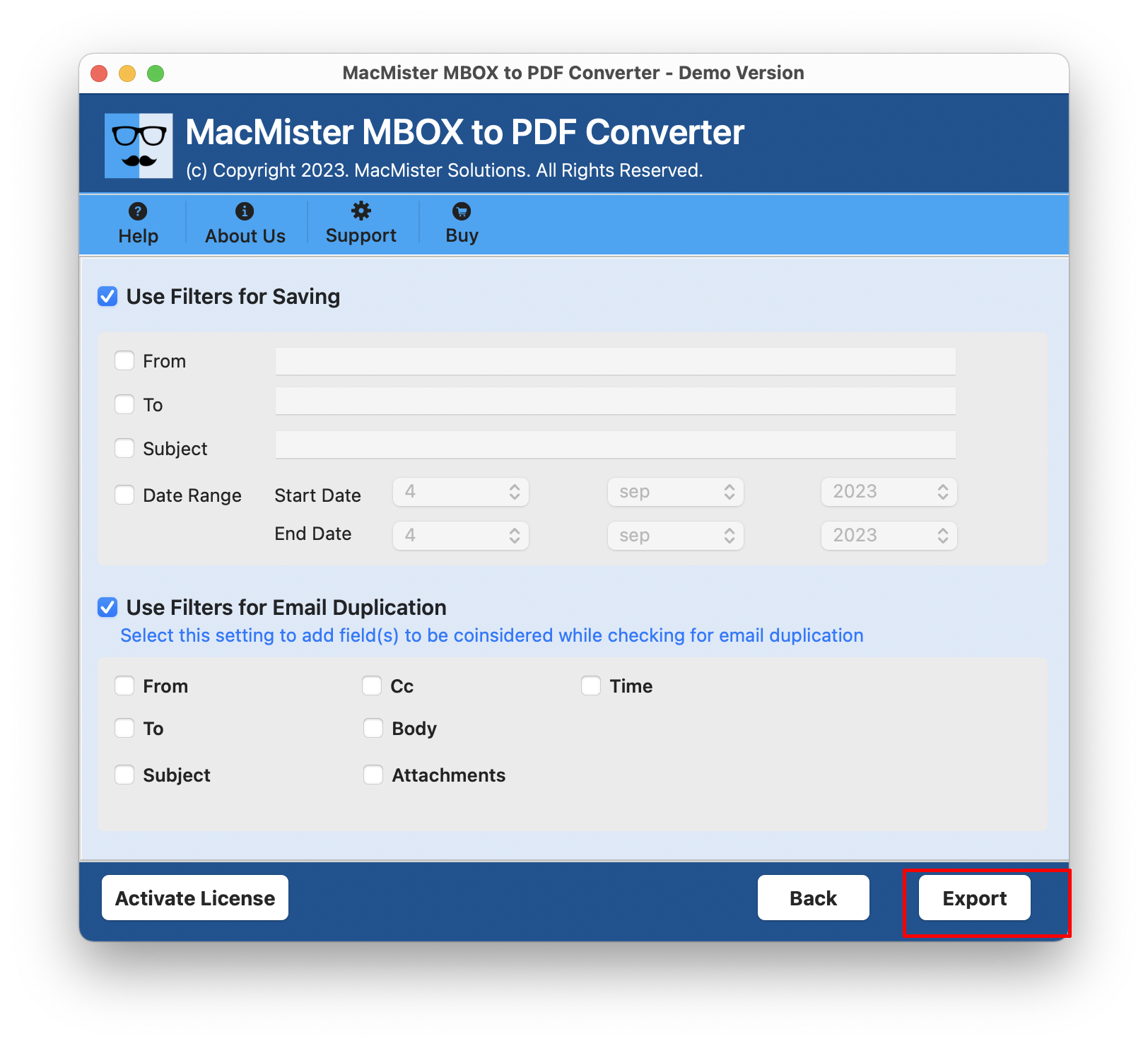
Step 5: start export

STEP 6

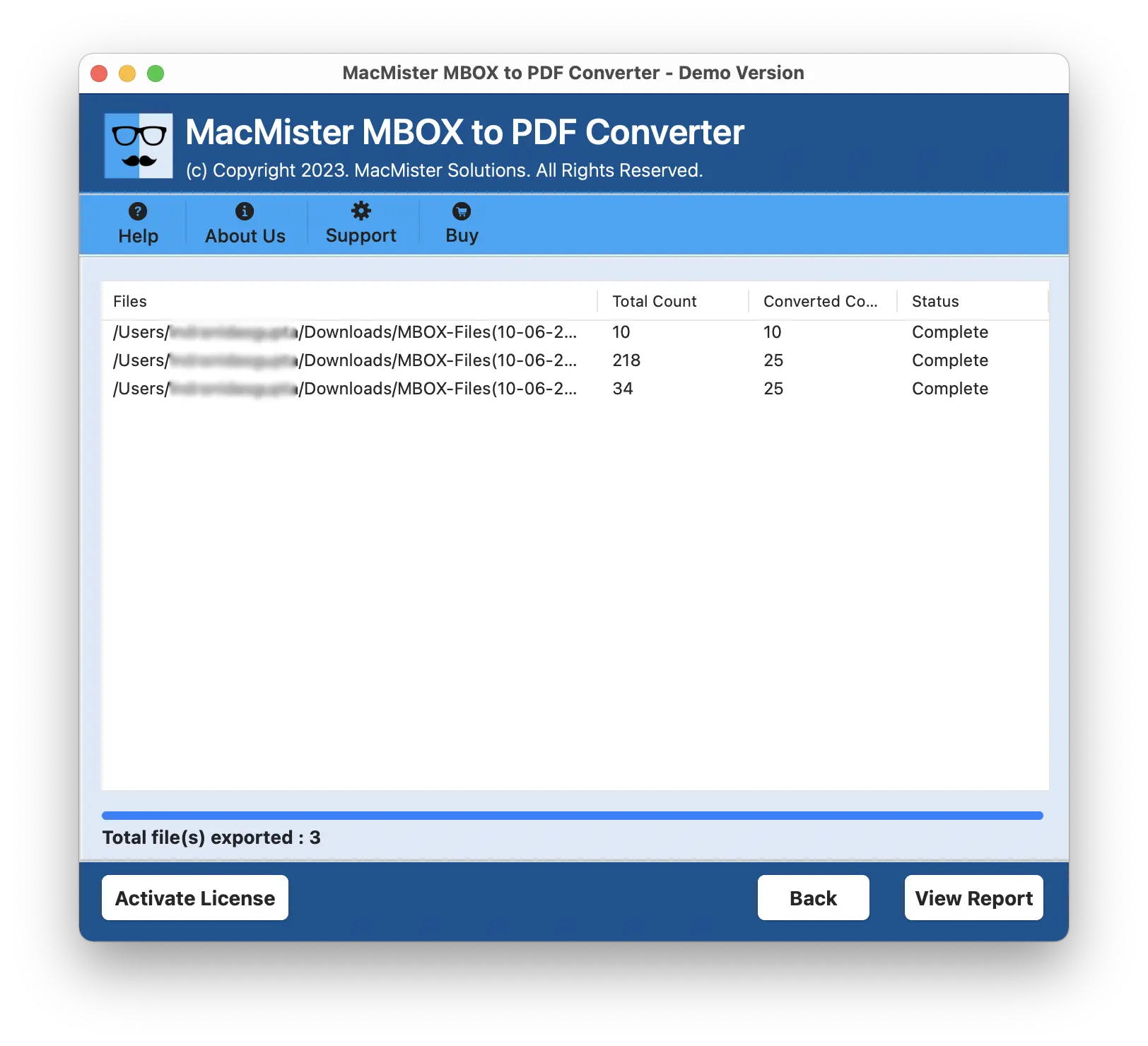
Step 6: monitor conversion

STEP 7

How to choose a viewing method

GoalBest starting option

Read and search messagesApple Mail
Separate archive clientThunderbird
Inspect raw headersText editor/Terminal
Create readable documentsPDF conversion

Back up the archive first. Before importing or converting:

  1. Copy the MBOX file.
  2. Record its file size.
  3. Keep one untouched source copy.
  4. Use another copy for experiments.

Large MBOX files

An archive may be several gigabytes. Before import: Check free disk space.; Close unnecessary apps.; Keep the Mac connected to power.; Allow time for indexing.. Import can temporarily require extra storage. Mail may create its own local database and indexes after import. Make sure the Mac has substantially more free space than the raw MBOX size. Attachments. After importing, test messages containing: PDF files; Images; Office documents; ZIP archives. A successful message count does not prove attachments survived. Inline images. HTML email often contains images embedded through Content-ID references. Verify that representative messages still display correctly.

Remote images. Some images are hosted on external servers and are not actually stored inside the MBOX. An offline archive may therefore display placeholders even when the MBOX is valid. Message headers. Technical headers can include: Message-ID; Received; Authentication-Results; Reply-To. For legal or forensic use, preserve the original message data rather than relying only on a visual PDF. Character encoding. Test email containing: Arabic; Urdu; Chinese; Accented characters; Emoji. Improper encoding can make subjects or bodies unreadable. Corrupted MBOX files. Symptoms can include: Import stops unexpectedly.; Messages merge together.; Only part of the archive appears.; Attachments fail to decode.. Work on a copy before attempting repair.

Message separators

MBOX uses separator lines between messages. Corruption in those separators can make an importer interpret two messages as one or split one message incorrectly. Do not edit a huge MBOX casually. Opening a multi-gigabyte mailbox in a normal editor and saving it can change line endings or encoding. Use specialized tools or scripts if repair is necessary. Search performance. Apple Mail and Thunderbird may take time to index a large imported archive. Search results can be incomplete until indexing finishes. Folder structure. One MBOX file may represent one mailbox. A backup exported from another mail client may include several MBOX files organized in folders. Preserve that directory structure before import. Multiple MBOX files. For very large archives, import one mailbox at a time and record: Filename; Message count; Import status; Errors. Duplicate messages. Combining overlapping MBOX archives can create duplicates. Do not deduplicate by subject alone because separate replies often have the same subject.

Legal and compliance archives. If the archive is part of litigation, an investigation, or regulated records: Keep the source unchanged.; Document every conversion.; Preserve hashes where required.; Follow the records team’s retention instructions.. Privacy. MBOX archives can contain years of sensitive mail. Avoid uploading confidential archives to unknown online viewers. Prefer local processing unless your organization has explicitly approved a cloud service.

Malicious attachments

Old email archives may contain malware or phishing attachments that were dangerous when received and remain dangerous now. Do not open executable or suspicious attachments merely to test the archive. Apple Mail “On My Mac” storage. After import, you can keep messages in local mailboxes rather than uploading them to a cloud account. This is useful when the archive should remain local. Do not accidentally sync a giant archive. If you drag imported messages into an IMAP or iCloud mailbox, Mail may upload them to the server. For a large historical archive, make sure that is actually what you want. Time Machine. Once an archive is imported locally, Time Machine can help protect the Mac’s local Mail data. Keep a separate copy of the original MBOX as well. Exporting again after cleanup. Apple Mail can export a cleaned or reorganized mailbox back into MBOX format. This can be useful after you remove irrelevant mail or reorganize folders. PDF naming convention. When converting individual messages to PDF, a useful naming scheme is: YYYY-MM-DD_Sender_Subject.pdf

Add a unique sequence when subjects repeat. PDF/A. If an organization specifically requires PDF/A for long-term archival, verify that the converter actually creates and validates PDF/A. A normal PDF is not automatically PDF/A. Thunderbird add-on caution. The previous live version of this page referenced the Thunderbird ImportExportTools NG add-on. That can be useful, but add-ons can change compatibility after Thunderbird updates, so check the current add-on page before relying on it.

A safe viewing workflow

  1. Back up the source MBOX.
  2. Choose Apple Mail for the first viewing attempt.
  3. Import a small archive first.
  4. Verify messages and attachments.
  5. Allow indexing to complete.
  6. Use Thunderbird if a separate client is preferable.
  7. Convert selected mail to PDF only when a document archive is needed.
  8. Keep the original MBOX.

Conclusion

On a Mac, Apple Mail is usually the best first way to view an MBOX file because macOS supports direct MBOX import without additional software. Thunderbird is a useful independent alternative, while raw-text tools are better for technical inspection and PDF conversion is better for human-readable document archiving. Preserve the original MBOX before importing, verify attachments and international text, avoid uploading confidential archives to unknown online tools, and remember that PDF is a derivative rather than a full email replacement. If the archive is legally important, keep the original source and document every conversion step.

Choose an MBOX viewer based on what you need to do. If you only need to inspect a few messages, a desktop email client that can import or open MBOX may be enough. If you need advanced searching, export to other formats, attachment extraction, or very large mailbox handling, a dedicated viewer or conversion tool may be more practical. Use a copy of the mailbox for testing and avoid tools that modify the original file without warning. MBOX is often a single large container, so corruption or an interrupted write can affect many messages at once.

Check message structure after opening the file. Verify sender, recipient, subject, dates, attachments, HTML formatting, and folder organization where relevant. Some applications split folders into separate MBOX files, while others use companion index files. Understanding the source email client’s structure can make missing folders easier to diagnose. Protect confidential mail. For business or personal archives, prefer local tools when privacy matters and review the data-handling policy of any online viewer. An email archive may contain years of sensitive information that should not be uploaded casually.

Choose an MBOX viewing method based on what you need to do. If you only need to inspect a few messages, a desktop email client or dedicated viewer may be enough. If you need to search thousands of messages, preserve attachments, export selected emails, or prepare data for migration, choose a tool that can index the archive reliably and handle large files without modifying the source. Work from a copy of the MBOX file. An MBOX archive can contain years of mail in one large file. Before importing or converting it, duplicate the file and keep the original untouched. This protects you from accidental corruption, a failed import, or a tool that changes metadata during processing.

Check whether the file is really MBOX. Some mail applications use files or folders that look similar but store indexes and attachments separately. Confirm the source application and export method before assuming one file contains the entire mailbox. A correct extension does not guarantee a complete archive. Verify messages and attachments after opening. Spot-check old and recent emails, non-English text, large attachments, HTML messages, and nested folders where applicable. If the goal is migration, compare message counts and search for known messages before deleting the source.

Protect confidential email data

Mail archives frequently contain private or business-sensitive information. Prefer local tools when confidentiality matters, review the privacy terms of any online viewer, and avoid uploading an entire mailbox to an unknown service merely to preview a few messages. Keep backups until the archive has been successfully opened or migrated in its destination application. For the official workflow or technical background used in this article, consult Apple: Import or Export Mailboxes in Mail on Mac.

Reading is essential for those who seek to rise above the ordinary.

MyArticles

Welcome to MyArticles, an author-oriented website. A place where words matter. Discover without further ado our countless community stories.

Build great relations

Explore all the content from MyArticle community network. Forums, Groups, Members, Posts, Social Wall and many more. You can never get tired of it!

Become a member

Get unlimited access to the best stories and articles on MyArticles, support our lovely authors and share your stories with the World.