
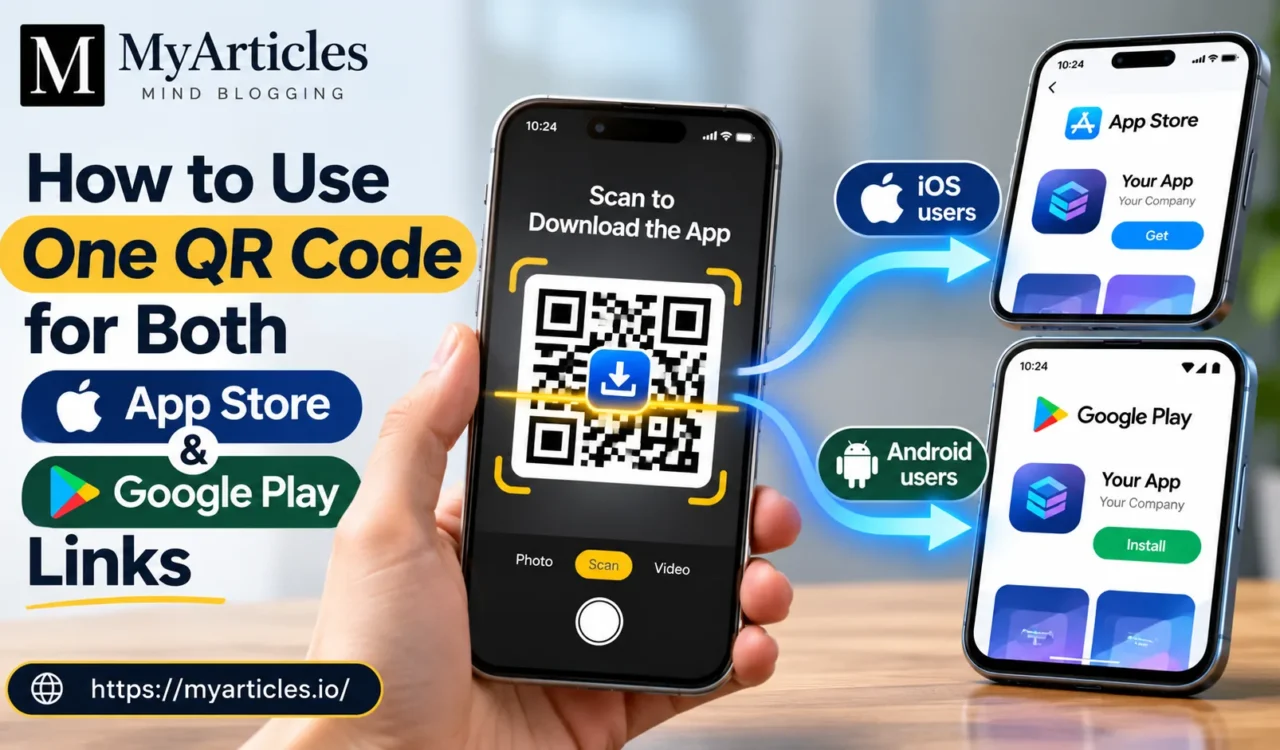
Promoting a mobile application can become unnecessarily complicated when the app is available on both iOS and Android. A business may print one QR code for the Apple App Store and another for Google Play, but this approach takes up more space and forces users to decide which code they need before scanning. On posters, product packaging, event displays, brochures, table cards, and other printed materials, two separate codes can also make the design look cluttered. A more practical solution is to use one QR code that directs iPhone users to the App Store and Android users to Google Play. The user simply scans the same code, while the destination is selected according to the device being used.
This type of setup is particularly useful for app publishers that promote their applications through both digital and physical channels. Instead of explaining which QR code belongs to which operating system, the publisher can place one clearly labeled code beside the app name and a short instruction such as “Scan to download the app.” When the code is configured correctly, the process feels almost invisible to the user. An iPhone user reaches the appropriate Apple App Store listing, while an Android user is directed to the corresponding Google Play page. The main work happens during setup, where the publisher supplies the correct store URLs, creates the QR code, customizes its appearance, and carefully tests the final result.
Why One QR Code Is Better Than Two Store Specific Codes
Using a single QR code reduces friction at the exact moment when someone is deciding whether to install an app. If two codes are printed next to each other, the user has to identify the correct store, position the camera over the right code, and sometimes determine whether the labels are clear enough to distinguish between them. A single code removes that decision. The scanning experience becomes consistent regardless of whether the person is using an iPhone or an Android phone, which is especially useful in busy environments such as trade shows, conferences, retail stores, restaurants, exhibitions, or product launches.
The design benefits are equally important. Printed materials usually have limited space, and a QR code already needs enough physical size and surrounding whitespace to remain easy to scan. Adding two codes can consume a significant part of a small package, flyer, display card, or poster. With one code, the designer has more room for the app name, brand message, product image, call to action, or download instructions. It also makes campaign management easier because marketing teams can use the same QR graphic across multiple materials instead of maintaining separate iOS and Android versions.
How Device Based App Store Routing Works
A multi-store QR code normally points to an intermediate smart link rather than directly to either app store. When somebody scans the code, that link identifies information about the device opening it. If the visitor is using iOS, the routing system sends the visitor to the Apple App Store destination configured by the publisher. If the visitor is using Android, the system directs the visitor to the Google Play destination instead.
This means the QR image itself does not need to contain two store addresses. It only needs to contain the smart routing URL. The routing layer manages the destination after the scan. From the user’s perspective, however, the experience remains simple because there is still only one visible code. The same QR graphic can therefore be printed on thousands of packages or posters without requiring users to understand the technology working behind it.
This approach is also useful when an app is promoted internationally. Apple and Google may display different store experiences depending on country, account settings, device configuration, or app availability. Because of this, publishers should not assume that a link that works perfectly on one phone in one country will behave identically everywhere. Store routing should be tested carefully before materials are printed in large quantities.
Start With the Correct iOS and Android Store Links
The first step is to collect the final public links for both versions of the application. For iOS, use the actual Apple App Store listing for the app rather than a developer dashboard URL, temporary testing link, or internal App Store Connect address. For Android, use the public Google Play listing that customers are expected to reach.
Open each link manually in a browser before creating the QR code. Confirm that the app name, developer name, icon, screenshots, description, and install button all belong to the intended application. This check sounds basic, but it can prevent expensive mistakes. Publishers sometimes manage multiple applications, regional editions, beta versions, old listings, or similarly named products, and accidentally using the wrong store URL can make a perfectly functional QR code send customers to the wrong page.
It is also worth checking that the app is already publicly available before placing the code on permanent materials. If a QR code is printed before a store listing becomes accessible, early users may encounter an unavailable page. For event materials with fixed dates, the publisher should verify availability shortly before printing and again shortly before the event.
Create the App Link QR Code
Once both store links are ready, they can be added to a QR platform that supports device-specific app routing. For example, the App Link option available through https://useqr.com/ can be used when the objective is to connect one QR code with both an iOS and Android app destination. The publisher provides the relevant App Store and Google Play URLs, after which the generated code serves as the single scanning point for both types of users.
The important part of the setup is assigning each destination correctly. The Apple URL should be entered in the iOS destination field, while the Google Play URL should be assigned to Android. Do not reverse them simply because the code itself still scans successfully. A QR generator can create a technically valid code even when the destinations entered by the publisher are incorrect, so successful code generation should never be treated as proof that the routing setup is right.
After generating the code, save the project in a way that makes it easy to identify later. A descriptive project name connected to the app or campaign can help marketing teams avoid accidentally downloading an older QR code when preparing new promotional materials.
Customize the Code Without Making It Difficult to Scan
QR codes do not have to be plain black squares on a white background. They can often be customized to better match the visual identity of an app or company. A publisher may adjust colors, add a logo, modify certain visual elements, or place the code inside a branded call-to-action panel. This can make the code feel like a deliberate part of the design rather than an element added at the last moment.
Customization should never come at the expense of scan reliability. Strong contrast between the QR pattern and its background is important, and the clear area surrounding the code should not be filled with decorative elements. Avoid extremely light colors, complicated backgrounds, excessive visual effects, or designs where important QR modules become difficult to distinguish. The safest approach is to customize moderately and then test the exact exported image rather than assuming that an attractive design will automatically scan well.
The final printed size also matters. A code that works perfectly on a computer screen may become difficult to scan after it is reduced to a tiny area on packaging. Consider both the physical size and the likely scanning distance. A QR code on a product box may be scanned from a few inches away, while a conference poster may need to work from several feet away.
Test the QR Code on Both Operating Systems
Testing is the most important step before publication. Do not test the QR code on only one phone and assume that the second store destination will work. Scan the exact final QR image using at least one current iPhone and one Android device. The iPhone should reach the intended App Store listing, and the Android device should reach the intended Google Play listing.
Ideally, testing should be performed using ordinary camera apps or the scanning method that real customers are likely to use. It is also useful to test both Wi-Fi and mobile data because network behavior can occasionally expose redirect or loading problems that were not obvious during the initial setup. If possible, ask somebody who was not involved in creating the campaign to test the code. A fresh tester may notice confusing instructions, an incorrect listing, or a design issue that the project team has become accustomed to overlooking.
Testing should also continue after printing. Scan one sample from the actual printed poster, package, badge, brochure, or event display. Printing can affect contrast, sharpness, size, and surface reflection, particularly when QR codes appear on glossy materials.
Practical Pre Publishing Checklist
- Confirm that the iOS URL opens the correct Apple App Store listing and that the app name, icon, developer, and description match the intended product.
- Confirm that the Android URL opens the correct Google Play listing and is not pointing to an outdated, beta, or similarly named app.
- Scan the final QR code with an iPhone and confirm that it routes to the Apple App Store.
- Scan the same QR code with an Android phone and confirm that it routes to Google Play.
- Check the app’s availability in every major country or region where the poster, packaging, event material, or campaign will appear.
- Verify that users in those regions are actually allowed to install the app and are not shown an unavailable or restricted listing.
- Test the exact exported QR image after customization rather than testing only the original unstyled version.
- Print a sample at the intended physical size and scan it under ordinary lighting conditions.
- Test the code from a realistic scanning distance, particularly for posters, banners, signs, and exhibition displays.
- Confirm that no logo, graphic, fold, cut line, sticker, or packaging seam interferes with the QR code or its surrounding clear space.
- Keep the readable app name and a simple instruction such as “Scan to download” beside the code.
- Recheck both store listings shortly before a major launch or event in case the app URL, availability, or publishing status has changed.
Keep the App Name Visible Beside the Code
A QR code should not be the only information shown to the user. Always place a readable app name next to it, even when the application logo is already visible elsewhere in the design. A person should know what will happen before scanning. A simple layout containing the app name, a short phrase such as “Download our app,” and the QR code usually provides enough context.
This becomes particularly important when QR codes are photographed, shared on social media, separated from their original display, or printed on materials that contain several calls to action. Without a visible app name, the code can become ambiguous. Users may hesitate to scan because they do not know where it leads. Clear labeling improves confidence and reduces unnecessary uncertainty.
Publishers may also include small Apple App Store and Google Play references near the code to indicate that both platforms are supported, but they should avoid creating the impression that users need to select between different QR codes. The main message should remain simple: scan once and the system will direct the device to the appropriate store.
Consider Regional App Availability Before Printing
Regional availability deserves special attention because an app can exist in the App Store or Google Play without being downloadable in every market. An application promoted at an international event may work perfectly for the publisher’s local team but produce an unavailable message for visitors whose store accounts are registered in other countries.
Before launching a campaign, compare the geographic distribution of the marketing materials with the app’s actual distribution settings. If packaging will be sold in the United States, United Kingdom, Canada, Australia, and several European countries, verify both iOS and Android availability across those markets. If an event attracts international attendees, review availability more broadly.
Store restrictions can also differ between the two platforms. An iOS version may be available in one market while the Android version is not, or vice versa. This does not necessarily mean the QR routing is broken. It may simply mean that one store listing is not published for that user’s region. Testing and documenting regional availability helps marketing and support teams distinguish between a QR configuration problem and a store-distribution issue.
Use the Same Code Consistently Across Campaign Materials
Once the QR code has been fully tested, the same approved graphic can be used across posters, packaging, brochures, exhibition booths, event materials, printed advertisements, product inserts, and other campaign assets. Keeping one standardized code reduces the possibility that different design teams accidentally publish different destinations.
Maintain a master version of the approved QR image together with the app’s store URLs and campaign information. Designers should use that approved file rather than regenerating the code independently for every new asset. This creates a more controlled publishing process and makes future troubleshooting easier.
If the underlying service allows destination management without changing the printed QR graphic, publishers may also have more flexibility when an app listing changes. Even in that situation, any destination update should be tested on both operating systems immediately after it is made.
Conclusion
Using one QR code for both the Apple App Store and Google Play provides a cleaner and more convenient way to promote a mobile application. Instead of forcing users to choose between separate iOS and Android codes, the publisher creates one scanning point that routes each device to the appropriate store. The approach works especially well on posters, packaging, brochures, event materials, product displays, and other places where space and ease of use matter.
The setup itself is straightforward, but accuracy depends on preparation. Publishers should begin with the correct public store URLs, create a device-aware app link, customize the QR code carefully, and test the final version on both iOS and Android. Regional store availability should also be checked wherever the campaign will appear. Finally, a readable app name and clear download instruction should always remain beside the code so users know exactly what they are scanning.
When these details are handled properly, one QR code can replace two separate download paths while giving both iPhone and Android users a simple route to the correct app listing.